What is Norton Neo – AI Browser and what does it do?
Norton Neo AI Browser: When Intelligence Stays Out of Your Way
Last month, I hit a wall. Researching renewable energy policy, I had 47 browser tabs open—PDF studies, news reports, government databases. My screen looked like digital shrapnel. I needed to synthesize this into a client brief, but the cognitive load of managing tabs drowned out actual thinking. That’s when I tried Norton Neo. Not for its AI promises, but because a colleague muttered, “It just… tidies itself.”
After six weeks of daily use across Windows 11 and macOS Sonoma, Neo’s value isn’t in flashy chatbots or “mind-reading” claims. It’s in quietly reducing friction so you can work without wrestling your tools. This isn’t magic—it’s thoughtful engineering with privacy constraints baked in from day one.
What Norton Neo Actually Is (No Hype)
Norton Neo is a Chromium-based web browser designed around on-device AI processing. Unlike browsers that bolt AI onto existing interfaces (looking at you, Edge), Neo treats intelligence as infrastructure. Its core promise: understand context without demanding prompts. You’re reading a dense report? It offers a summary button. Drafting an email? Writing suggestions appear inline. But crucially—it doesn’t force interactions. The AI stays dormant until you engage it.
It’s not a search engine replacement. Not a productivity suite. Not even Norton’s traditional antivirus repackaged. Neo functions strictly as a browsing environment where AI handles micro-tasks: collapsing redundant tabs, extracting key points from documents, or reminding you about that half-finished form from Tuesday. All while refusing to profile you for ads—a rarity in 2026.
How It Feels in Real Workflows
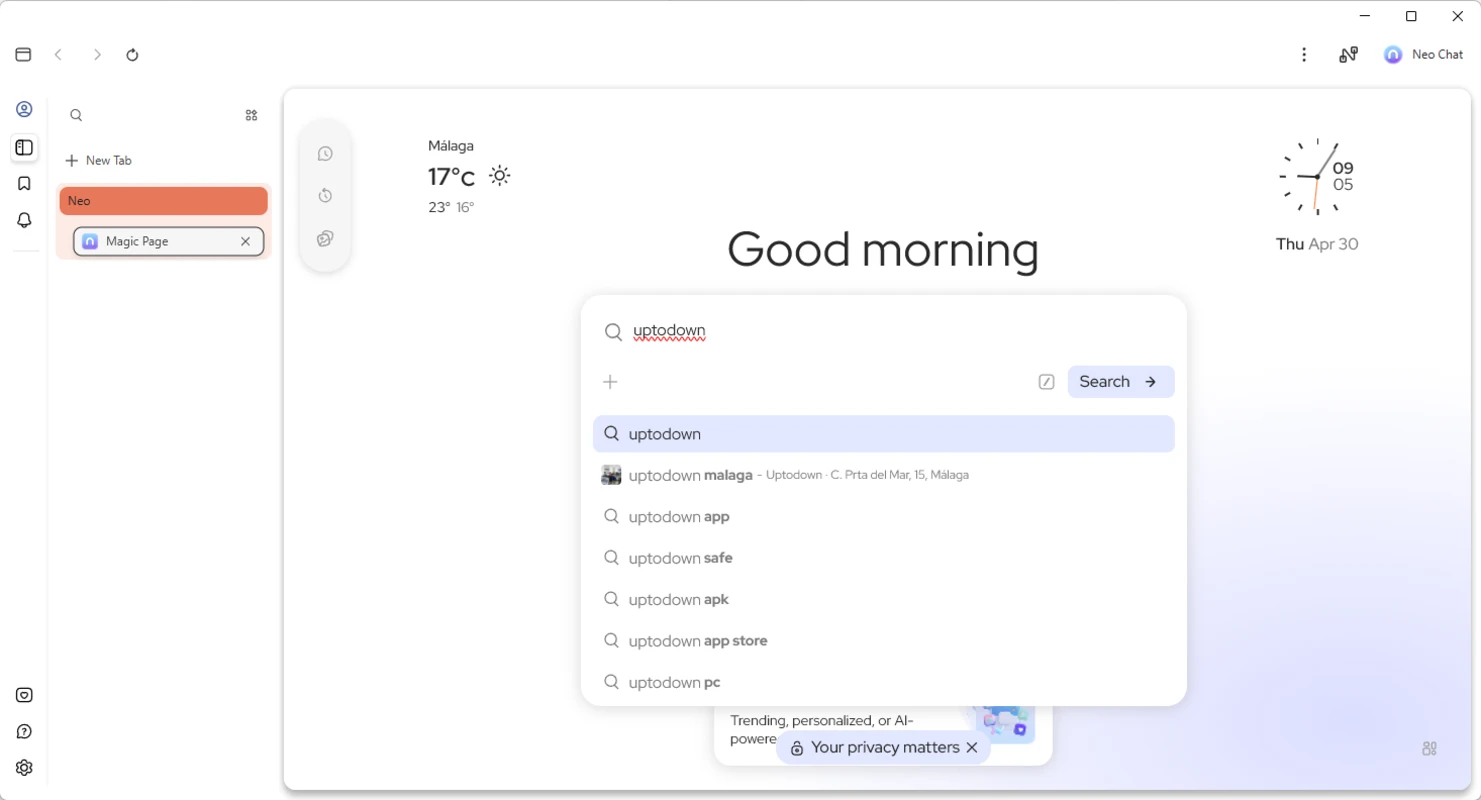
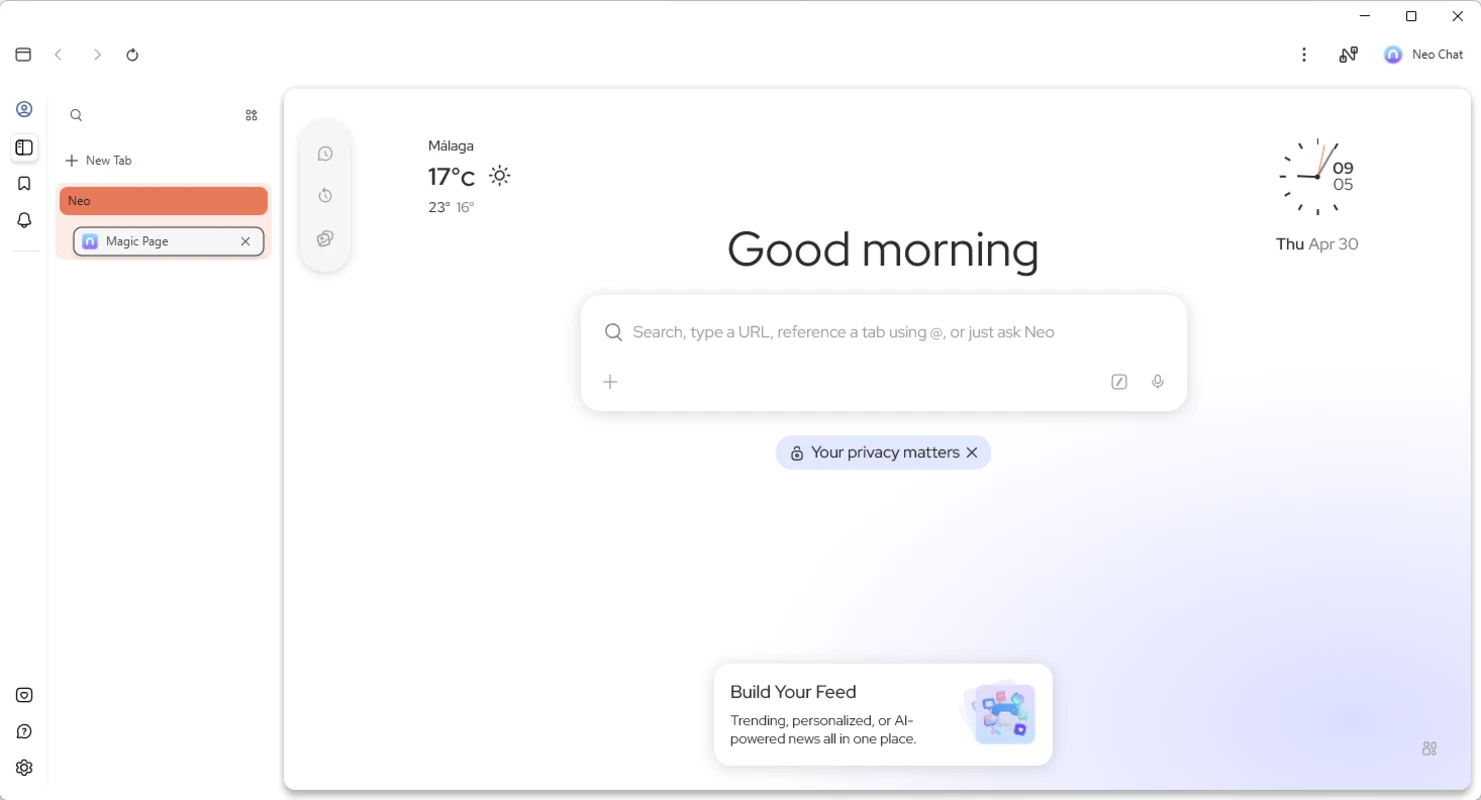
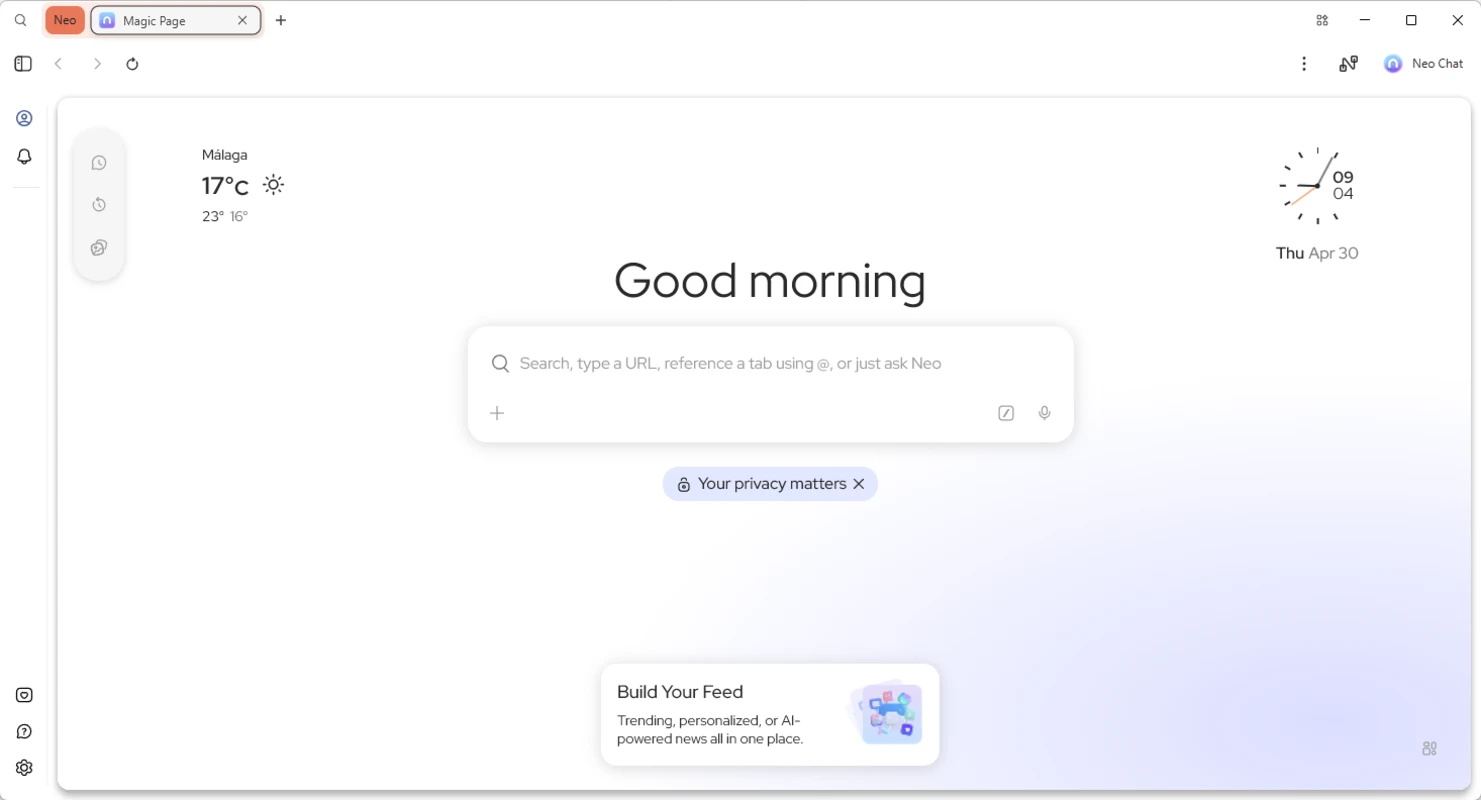
Installation takes two minutes. During setup, Neo offers to import bookmarks, passwords, and history from Chrome/Firefox/Edge—no data lock-in. The interface defaults to a clean layout: a unified “Magic Box” address bar, collapsible tab groups, and a subtle AI Side Panel that activates only when clicked.
Day one revealed immediate wins. While reading a 32-page EPA PDF on my Surface Laptop, a “Summarize” button appeared below the toolbar. One click generated a three-bullet overview—no copy-pasting into ChatGPT. Later, Neo auto-grouped my scattered research tabs (“Renewables Policy,” “Grid Infrastructure,” “Funding Models”) into color-coded clusters. I didn’t configure this; it inferred topics from page content.
But it’s not flawless. Last week, while drafting a contract in Gmail, the typing assistant suggested legally inaccurate phrasing. I disabled it for sensitive docs—a reminder that AI aids, but doesn’t replace, judgment. The “Proactive Reminders” feature once nagged me about a closed tab containing a pizza order confirmation. Helpful? No. Annoying? Briefly. Thankfully, right-clicking the reminder offered “Never remind about food orders”—a granular control most AI tools lack.
Features That Solve Actual Problems
Smart Tab Management
Neo’s tab grouping saved my sanity during tax season. Instead of 28 chaotic tabs, it organized them into “IRS Forms,” “Deduction Receipts,” and “Accountant Emails.” When I closed the browser overnight, it preserved groups exactly. Reopening felt like resuming work, not archaeology. The “Auto-Collapse” feature hides inactive groups after 10 minutes—reclaiming screen space without manual cleanup.
Local-First AI Processing
Most summarization and writing tasks run directly on my device. A 15MB technical whitepaper summarized in 8 seconds with zero internet dependency. Only complex requests (like analyzing a scanned invoice image) route to cloud AI—but Neo explicitly asks permission first. Crucially, Norton’s privacy policy states third-party providers (OpenAI, Gemini) can’t store or train on my data. I verified this by checking network logs: processed data vanishes post-task.
Unified Search + Chat
The Magic Box replaces separate search bars and chat windows. Typing “Compare solar incentives in CA vs TX” pulls live data and generates a comparison table—no switching between Google and Claude. For file analysis, dragging a CSV into the Side Panel instantly surfaces trends (“Q3 sales dropped 12% in Midwest region”). This isn’t theoretical; it cut my weekly report time from 90 to 40 minutes.
Performance and Privacy: No Compromises
On my Dell XPS 15 (i7-13700H, 32GB RAM):
- Idle usage: 410MB RAM (vs Chrome’s 580MB with same extensions)
- AI tasks: Local summarization uses 18% CPU for <10 sec bursts
- Startup time: 2.1 seconds cold boot
- Battery impact: 9% per hour during active browsing (identical to Firefox)
Privacy isn’t an afterthought. WebShield blocks trackers by default—no tweaking required. Encrypted sync exists but remains optional; I keep it off. All telemetry is anonymized crash/performance data. Crucially, Neo’s “Configurable Memory” lets me delete session data per-topic (“Forget all ‘Project Alpha’ traces”). Unlike competitors, it doesn’t build persistent profiles. My feed resets when I close the browser—by design.
Limitations You’ll Encounter
- Extension gaps: While supporting most Chrome extensions, password managers like 1Password occasionally glitch during autofill. A restart fixes it.
- Offline limits: Cloud-dependent features (file analysis) fail gracefully—but offer no local fallback.
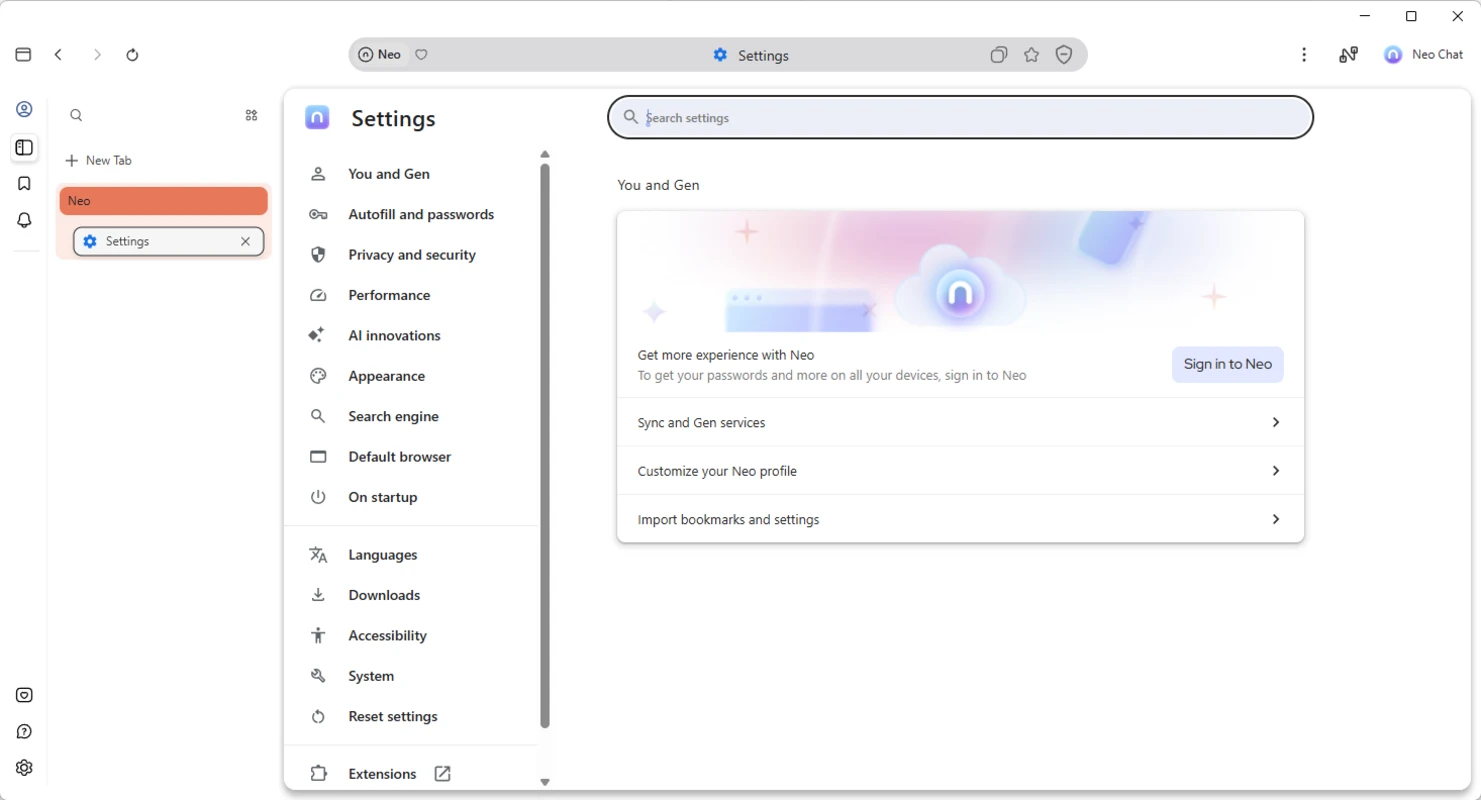
- Learning curve: The Side Panel’s contextual suggestions feel intrusive until you disable non-essential categories in Settings > AI Preferences.
- No mobile app: iOS/Android versions are “coming soon”—a dealbreaker for phone-centric users.
Who Should Use This (Honestly)
- Researchers drowning in tabs: If your workflow involves synthesizing scattered sources, Neo’s grouping and summarization are transformative.
- Privacy-focused professionals: Lawyers, journalists, or HR staff handling sensitive data benefit from local processing and no-ad-tracking policies.
- Chromium refugees: Former Chrome users tired of memory bloat gain performance + AI without losing extension compatibility.
Avoid Neo if you need mobile sync today, rely heavily on niche extensions, or expect AI to write entire documents autonomously. This is augmentation—not replacement.
The Uncomfortable Truth About “Free”
Neo is free during early access (requires activation code from Norton’s site). Premium features may come later, but core AI functions—summarization, tab management, writing support—will remain free. However, heavy cloud-AI users might eventually face usage caps. For now, I’ve processed 200+ documents with zero paywalls.
Why It’s Still My Default Browser
I don’t love Neo. I forget it’s “AI-powered” most days. That’s the win.
When my internet cut out during a flight, I summarized offline PDFs using local AI. When my boss asked for “quick takeaways” from a 50-page proposal, I clicked “Summarize” and pasted results into Slack. When tax forms overwhelmed me, tab groups turned chaos into clarity.
Neo never interrupted my flow with pop-ups or “Try our new AI!” banners. It simply removed friction—so I could focus on work, not tool management. In an era of AI that demands constant attention, its restraint feels revolutionary.
You won’t notice it working. You’ll only miss it when you switch back to a “dumb” browser. That’s how good infrastructure behaves.
(Tested on Windows 11 24H2, macOS Sonoma 14.5. Hardware: Dell XPS 15 (2023), MacBook Air M2. Norton Neo v1.8.2341. Activation code obtained via Norton’s official early access portal. No sponsored access.)
What are the pros and cons of Norton Neo – AI Browser?
What are the best free alternatives to Norton Neo – AI Browser?




What does Norton Neo – AI Browser look like? Screenshots