What is K-Lite Mega Codec Pack and what does it do?
K-Lite Mega Codec Pack: A Reliable, All-Format Media Playback Solution for Windows
K-Lite Mega Codec Pack is a comprehensive set of audio and video codecs, DirectShow filters, splitters, and playback utilities built to solve a simple problem that still affects many Windows users: media files that refuse to play. Even on modern systems, it’s common to run into downloads that trigger errors like unsupported format, missing codec, or audio without video (or the other way around). This happens most often with MKV containers, older AVI variants, uncommon audio tracks, or archived content produced with legacy encoders.
Instead of forcing you into a single media player or installing random codec files from multiple sources, K-Lite Mega Codec Pack provides a curated, stable playback stack that integrates with Windows in a controlled way. It keeps the system flexible: you can use the included player, keep your existing player, and still benefit from high-quality decoders and splitters that make playback more consistent across applications. For people who routinely download media through browsers such as Google Chrome or Mozilla Firefox for Windows, this is one of the most practical ways to reduce playback friction across a large library of mixed files.
What K-Lite Mega Codec Pack Is
K-Lite Mega Codec Pack is the most feature-complete edition of the K-Lite family. It installs a full media framework for Windows playback by combining modern decoders (for today’s formats) with optional legacy components (for older or niche formats). The “Mega” edition is not just a bigger download; it is built for people who need broad compatibility and tools that make diagnosing media issues easier.
At a high level, it includes:
- Modern decoding components for current video/audio formats
- Splitters that correctly read container files (such as MKV and MP4)
- DirectShow filters and supporting libraries used by many Windows media apps
- A lightweight player for users who want an all-in-one setup
- Utilities for troubleshooting, cleanup, and file information
The result is a stable baseline: most media files play normally, without trial-and-error installs, and without overwriting your preferred workflow.
Core Playback Architecture and Why It Matters
K-Lite is built around a DirectShow-based playback strategy. In simple terms, Windows playback can be seen as a pipeline: a container is opened, tracks are recognized, and the appropriate decoders and renderers are used to output audio and video. When any piece in that chain is missing or incompatible, playback fails.
K-Lite’s approach is to install proven, widely used components that handle the most common failure points:
- Splitters that correctly read container formats and expose audio/video/subtitle streams
- Decoders that handle codec types (H.264, HEVC, VP9, AAC, FLAC, DTS, and more)
- Renderers that control how the final image is displayed and how subtitles are layered
Because the pack is designed as a coherent set, it avoids the classic codec pack problem where multiple overlapping filters fight for priority. The goal is not “install everything and hope” but “install the right stack and keep it manageable.”
Included Player and Decoding Stack
The pack commonly centers playback around Media Player Classic Home Cinema (MPC-HC), a lightweight, configurable media player that works well with DirectShow filters. Even if you do not plan to use MPC-HC as your daily player, its presence helps as a reference playback environment: when a file fails elsewhere, testing it in MPC-HC can quickly reveal whether the issue is the file or the player configuration.
LAV Filters (Modern Decoding)
One of the most important elements in the K-Lite ecosystem is the LAV Filters suite, typically used for:
- LAV Video for modern video codecs (including H.264 and H.265/HEVC)
- LAV Audio for a wide range of audio formats and multi-channel tracks
- LAV Splitter for robust container handling and stream selection
This matters for high-bitrate content and newer formats where older decoders may stutter, fail to seek properly, or produce audio sync problems. Hardware acceleration support can also reduce CPU load for high-resolution video, which is especially useful on laptops and compact desktops.
Optional Legacy Support (When Older Files Need It)
Modern decoders cover most files today, but older media collections can include unusual encodes and historic formats. The Mega edition is designed for this reality. Optional filters and compatibility layers help when files were created with outdated pipelines or when the encoding is technically valid but uncommon in modern players.
This is one reason the Mega edition appeals to archivists and anyone managing old libraries: it reduces the number of files that require special handling or conversion.
Format Support: Mainstream and Rare Coverage
K-Lite Mega Codec Pack supports mainstream containers and codecs that most users encounter daily:
- Video containers: MP4, MKV, AVI, MOV, FLV, WebM
- Audio formats: MP3, AAC, FLAC, AC3, DTS (and related variants)
- Common codecs: H.264/AVC, H.265/HEVC, VP9 (file-dependent)
Where it often provides extra value is in less common and legacy formats that still appear in real-world libraries, downloads, and archives. Older DivX variants, niche container combinations, and certain legacy media families are typical examples. Instead of forcing a re-encode or a hunt for a single missing component, the pack provides broader compatibility out of the box.
In environments where media files are shared across machines—such as office PCs, lab systems, or servers—a more consistent codec baseline can reduce support tickets and repeated troubleshooting. That can matter even on systems like Windows Server 2022 when a server is used for testing, preview, or internal media review.
Installation Customization and Conflict Control
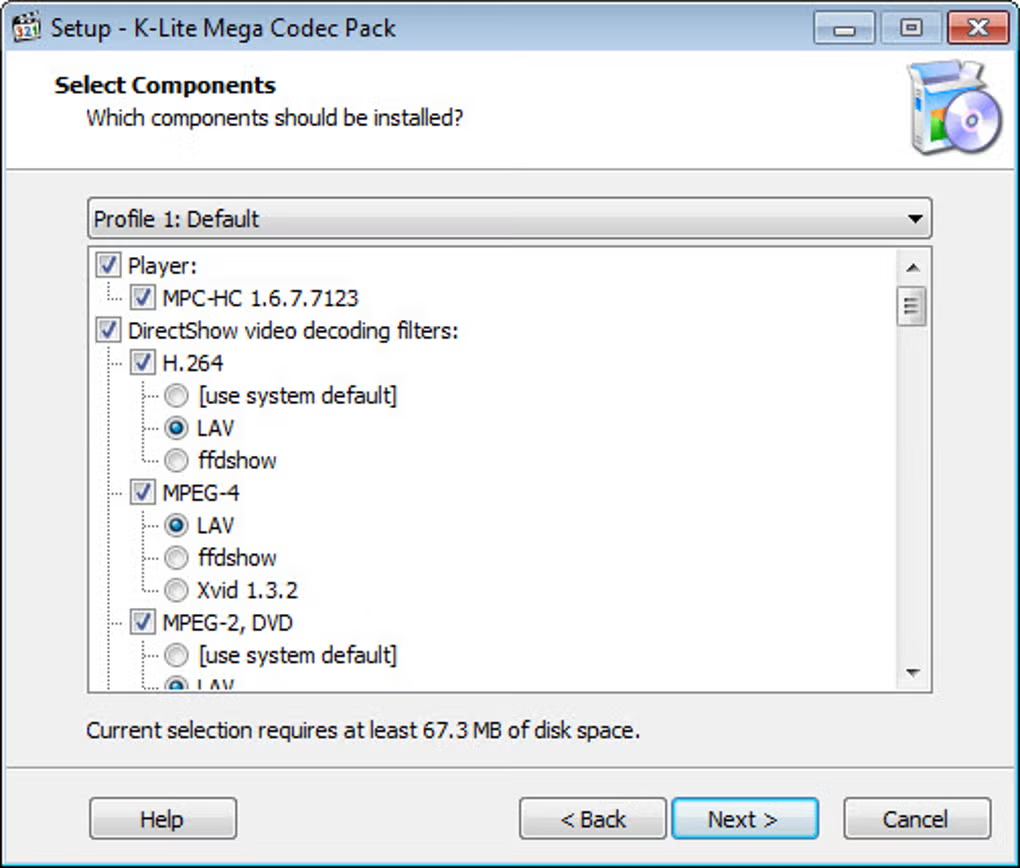
K-Lite’s installer is designed to be selective rather than aggressive. It offers a guided wizard that lets users choose components based on their needs. This is important because a “one size fits all” install can create redundancy if the system already has professional tools installed or if the user relies on a specific player stack.
During installation, users can typically:
- Pick preferred splitters and decoders
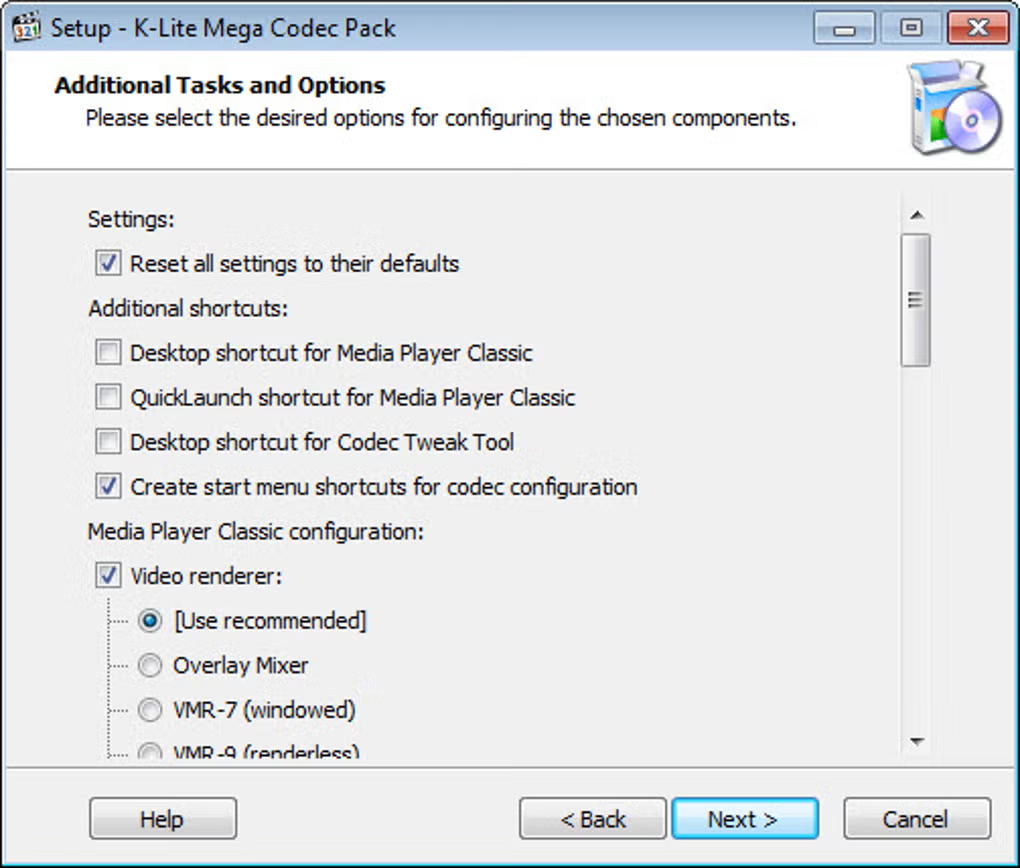
- Select renderers based on hardware and display needs
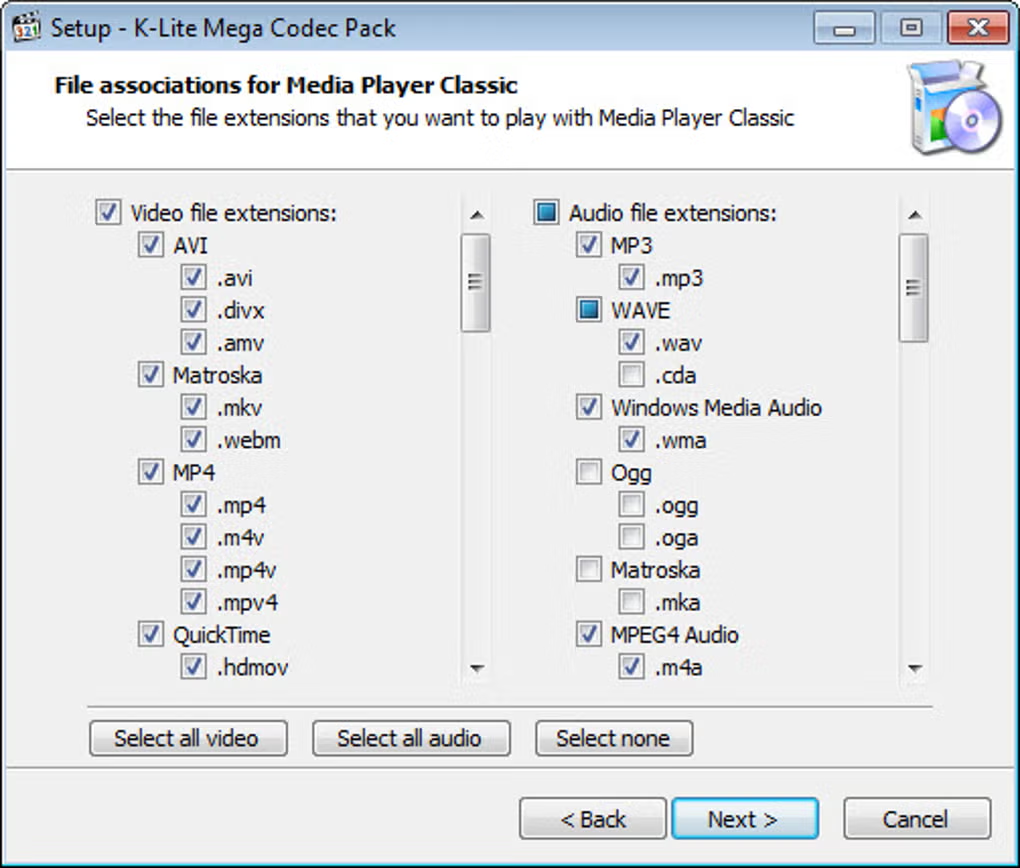
- Control file associations without forcing system-wide changes
- Disable components that may overlap with specialist software
For many users, the best approach is to accept recommended defaults, then adjust only if a specific playback scenario demands it.
Codec Tweak Tool (Practical Maintenance)
Codec conflicts often come from old, broken, or partially removed filters that remain on a Windows system. K-Lite’s Codec Tweak Tool helps address this by scanning for common issues and offering options to disable or remove problematic components. This is especially useful on machines that have been upgraded across several Windows versions or have had multiple media toolchains installed over time.
A key benefit is that the pack aims for clean behavior both ways: installation is controlled, and uninstallation removes the installed components without leaving clutter behind.
Rendering Options and Visual Quality
Decoding determines whether a file plays; rendering strongly influences how it looks. K-Lite supports different renderers depending on your needs and hardware. Many users will be satisfied with the default renderer, but higher-end setups—particularly those connected to calibrated displays or large TVs—may benefit from advanced rendering options.
In practical terms, renderers can affect:
- Scaling quality on lower-resolution content
- Color handling and presentation
- Subtitle layering and timing behavior
- Overall smoothness, depending on GPU and driver conditions
Users who process or enhance footage with tools such as Topaz Video AI may also appreciate having a stable playback environment for checking results, comparing exports, and validating that files behave predictably across machines.
Integrated Tools for File Insight and Troubleshooting
K-Lite Mega Codec Pack includes utilities that make media management easier. These tools are often overlooked, but they can save time when dealing with unusual files or inconsistent playback behavior.
MediaInfo Lite
MediaInfo Lite displays technical metadata such as codec type, profile, bitrate, resolution, and audio channel layout. When a file plays poorly—or not at all—knowing exactly what’s inside the container is often the fastest step toward a fix.
GraphStudioNext
GraphStudioNext helps visualize the DirectShow graph used during playback. For advanced users, this makes it possible to see which splitter and decoder are being selected, and where the chain fails. It is especially helpful on systems that have multiple media components installed.
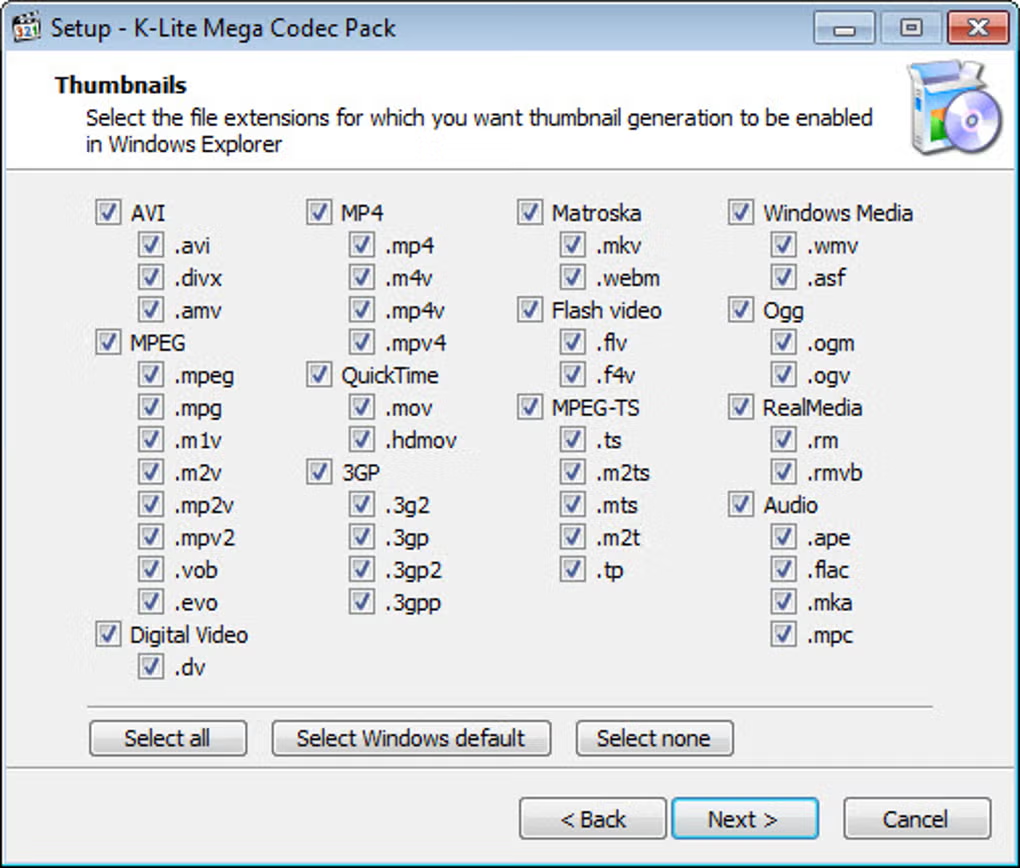
Thumbnail and Shell Extensions
Explorer thumbnails and preview support improve day-to-day file browsing. When you manage many video files, being able to visually identify content without opening each file is a practical productivity advantage.
Who K-Lite Mega Codec Pack Fits Best
This pack tends to be most useful for people who encounter a wide variety of media sources and formats. Typical user profiles include:
- Everyday Windows users who want files to play without repeated errors
- Media collectors managing older libraries and mixed container types
- Creators who export and test video across different machines
- Technical users who want control over filters, renderers, and troubleshooting
- IT and support teams who prefer a consistent playback baseline across devices
It can also be a helpful complement to a modern browsing and download workflow, where media files arrive via common browsers such as Chrome or Firefox for Windows, and need to play reliably without manual setup each time.
How the Mega Edition Differs From Lighter Options
The Mega edition stands out because it prioritizes completeness and tooling. In addition to the core playback stack, it includes more legacy coverage, additional utilities, and broader support for scenarios where encoding components are relevant. Users who only ever play common MP4 files may find lighter options sufficient, but the Mega edition is designed for real-world media diversity—where downloads, archives, and project files don’t always follow modern standards.
A practical way to think about it: if your media is varied, the Mega edition reduces edge cases. If your media is always standard, you may not need every included component.
Practical Benefits in Daily Use
When installed and configured sensibly, K-Lite Mega Codec Pack delivers real improvements that show up in everyday tasks:
- Fewer “missing codec” and “unsupported format” errors
- More consistent playback across different Windows apps
- Better handling of MKV containers with multiple audio/subtitle tracks
- Smoother playback of high-bitrate video on supported hardware
- Clearer troubleshooting when a file is genuinely broken or incomplete
These benefits matter most when your library includes a mixture of sources—camera footage, old downloads, archived clips, screen recordings, and files shared from different systems.
System Compatibility and Best Practices
K-Lite Mega Codec Pack is commonly used on Windows 10 and Windows 11, with 64-bit systems generally recommended for modern playback workloads. The installation is designed to avoid forced changes to system-wide file associations by default, keeping control in the hands of the user.
For best long-term stability, it helps to follow a simple rule: avoid stacking multiple codec packs. If a system has had several packs installed in the past, using the included maintenance tools to remove broken or unused filters can improve results.
Final Summary
K-Lite Mega Codec Pack is a comprehensive, structured media compatibility solution for Windows. It combines modern decoders, robust container handling, optional legacy support, and useful diagnostic tools in a package designed to reduce playback failures without turning Windows into an unstable mix of competing filters.
For users who routinely handle mixed media libraries—especially files downloaded through Google Chrome or Mozilla Firefox for Windows, previewed on different machines, or processed with tools like Topaz Video AI—this pack offers a dependable foundation. Its strength is not a single feature; it’s the way the components work together to make playback predictable, configurable, and easier to troubleshoot when edge cases appear.
What are the pros and cons of K-Lite Mega Codec Pack?
What are the best free alternatives to K-Lite Mega Codec Pack?

What does K-Lite Mega Codec Pack look like? Screenshots