
Microsoft PC Manager: A Practical Windows Tool for System Health, Performance, and Security
Introduction
Keeping a Windows PC running smoothly often requires regular maintenance. Temporary files build up, storage fills faster than expected, background processes slow things down, and security checks are easy to forget. Windows already includes tools to deal with these issues, but they are spread across different settings and menus, which makes routine care harder than it needs to be.
Microsoft PC Manager is a free application created to solve that problem. Instead of adding new system features, it brings several existing Windows tools into one simple interface. The idea is not to change how Windows works, but to make important maintenance tasks easier to find and easier to use.
This app is aimed at people who want a clean, safe, and responsive PC without spending time adjusting advanced system settings. It focuses on everyday maintenance rather than deep optimization or technical customization.
What Is Microsoft PC Manager?
Microsoft PC Manager is an official Windows utility that provides a clear overview of system health, performance, and security. It acts as a central hub for common maintenance actions such as cleanup, storage management, security checks, and basic system protection.
Instead of opening multiple system panels, users can perform these tasks from one small window. The app does not replace Windows features like antivirus protection or updates. It simply organizes them in a way that is easier to access.
The software is designed to be safe and predictable. It avoids aggressive system changes and works closely with Windows Security and built-in system tools. This makes it suitable for users who prefer official solutions and want to avoid third-party optimization software.
Also See: RAM Saver Pro 25.6.1 by WinTools.net
Core Purpose and Design Philosophy
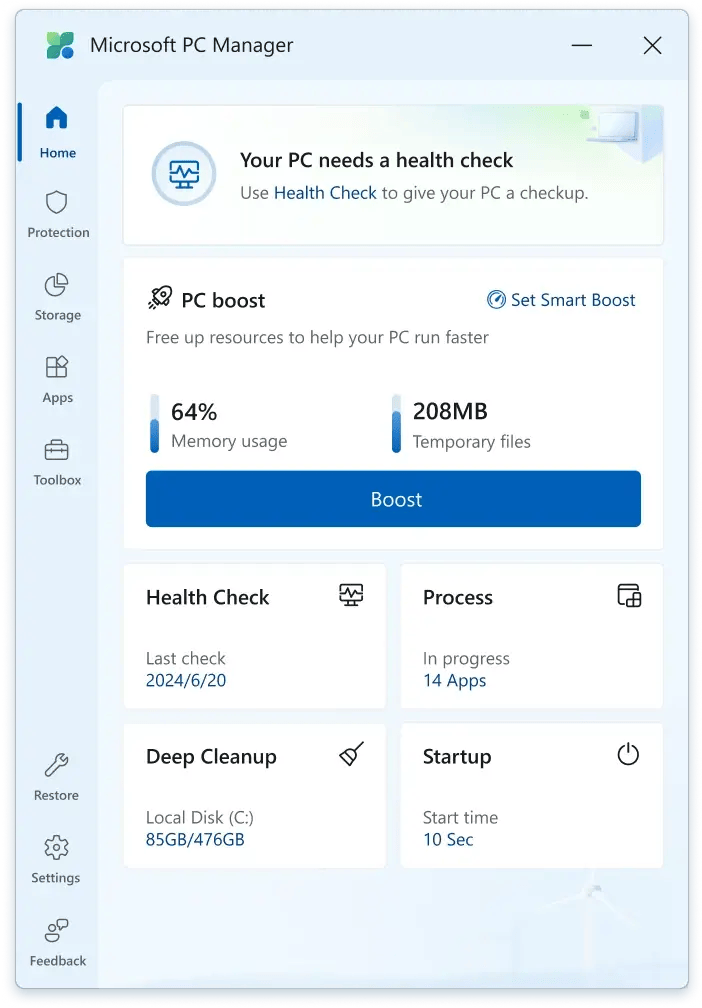
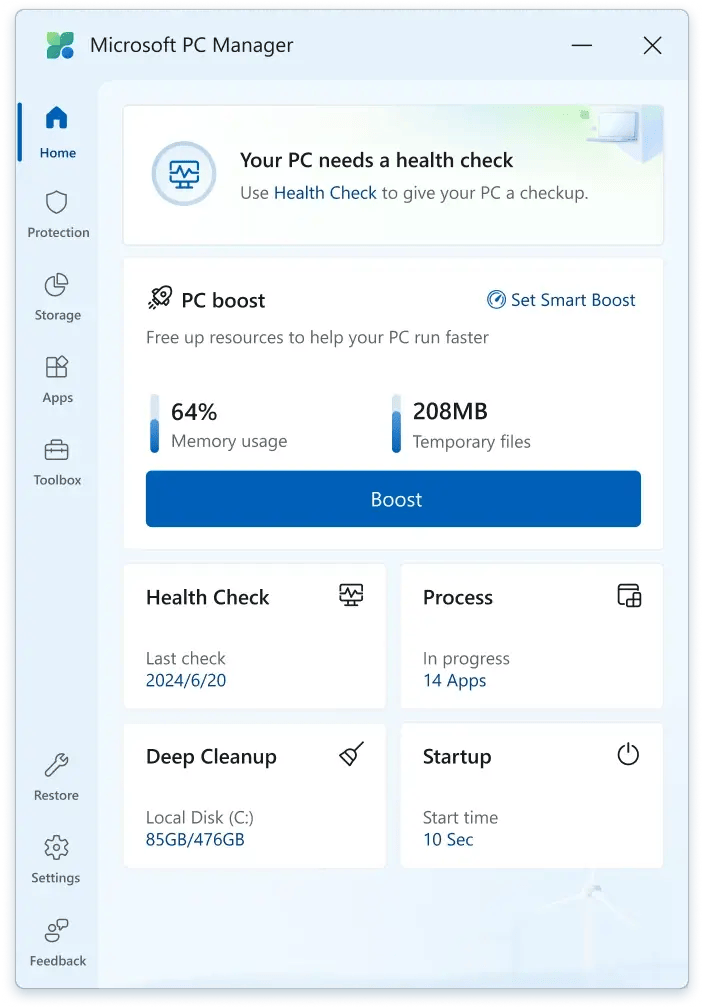
The core goal of Microsoft PC Manager is simplicity. The app opens quickly and uses a compact layout that avoids unnecessary visual clutter. Information is presented clearly, without technical language or complex charts.
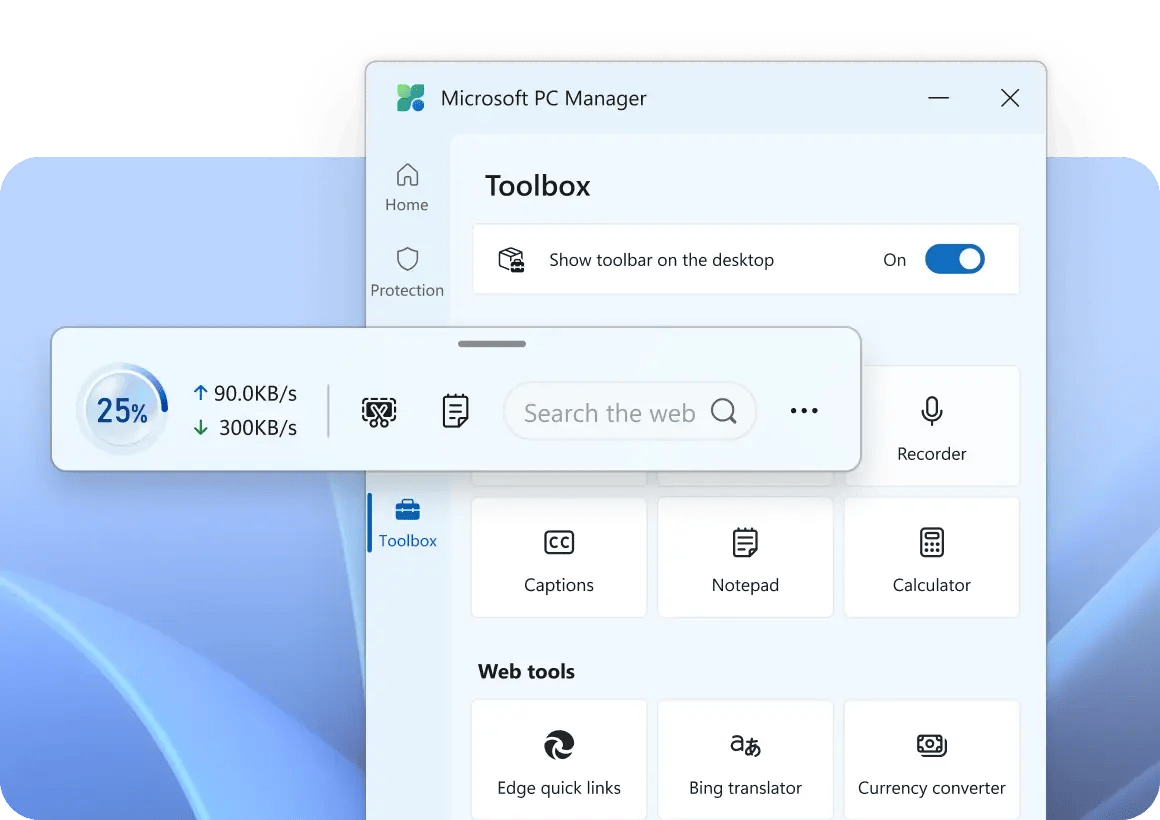
The interface is divided into two main areas: cleanup and security. Each section contains tools that can be used independently. Users are not required to run full scans or automated routines unless they choose to do so.
This design encourages small, regular actions. Instead of fixing major problems after they appear, PC Manager helps users maintain their system steadily over time. The focus is on prevention, visibility, and convenience rather than dramatic system changes.
Main Features Explained in Plain Terms
Although Microsoft PC Manager does not introduce new technologies, the way it presents existing Windows tools makes a real difference in daily use.
PC Cleanup and Performance Boost
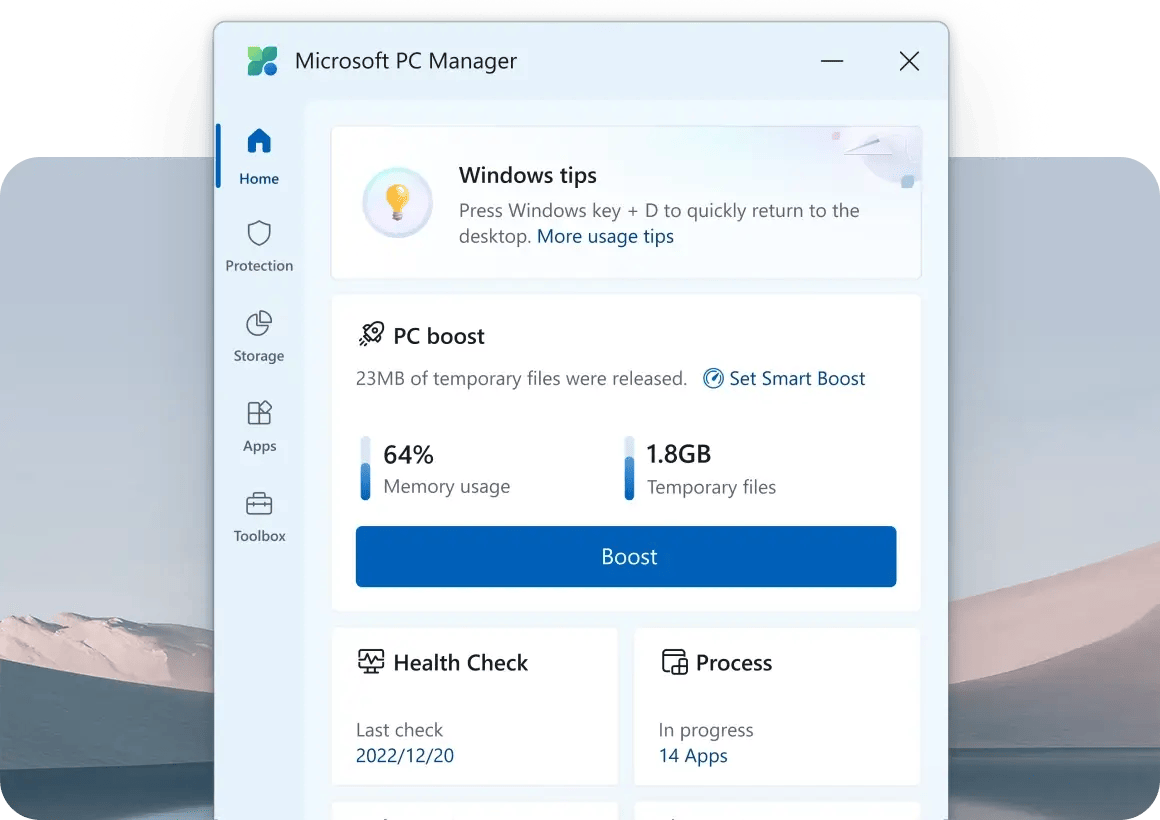
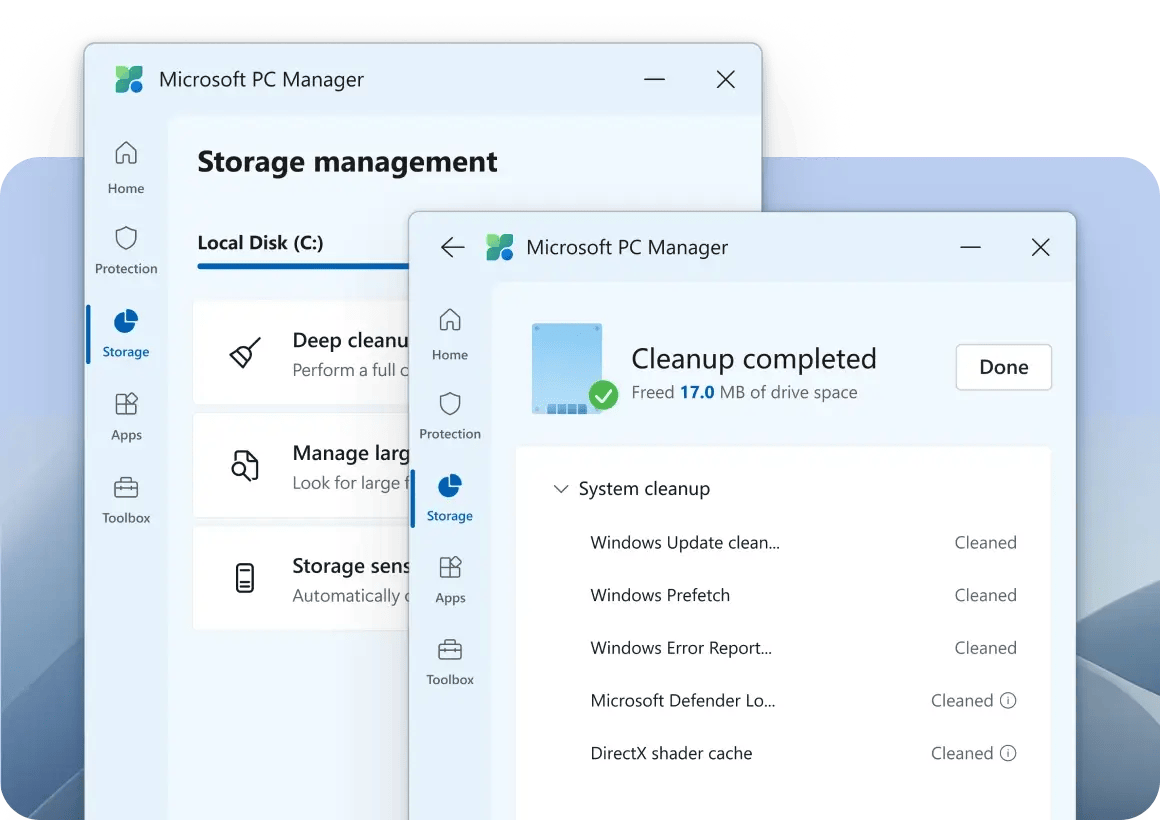
One of the main features of PC Manager is system cleanup. Over time, Windows creates temporary files, cached data, and leftover system files. These files are usually harmless, but they can take up storage space and affect system responsiveness.
PC Manager makes it easy to remove these files. With a few clicks, users can clear unnecessary data and free up system resources. This can help the PC feel more responsive, especially if it has not been cleaned recently.
The performance boost feature is designed for everyday improvement. It does not overclock hardware or modify system behavior. Instead, it focuses on freeing memory and reducing background load in a safe way.
Storage Management and Space Control
Storage issues are common, especially on laptops and systems with smaller drives. Files accumulate quietly, and users often do not notice the problem until space runs low.
Microsoft PC Manager helps users see how storage is being used. It highlights large files and unnecessary data that may be taking up space. It also works alongside Windows storage features that automatically manage disk usage.
This makes it easier to keep storage under control without manually searching through folders or system menus. The goal is awareness, not forced cleanup.
Health Checkup
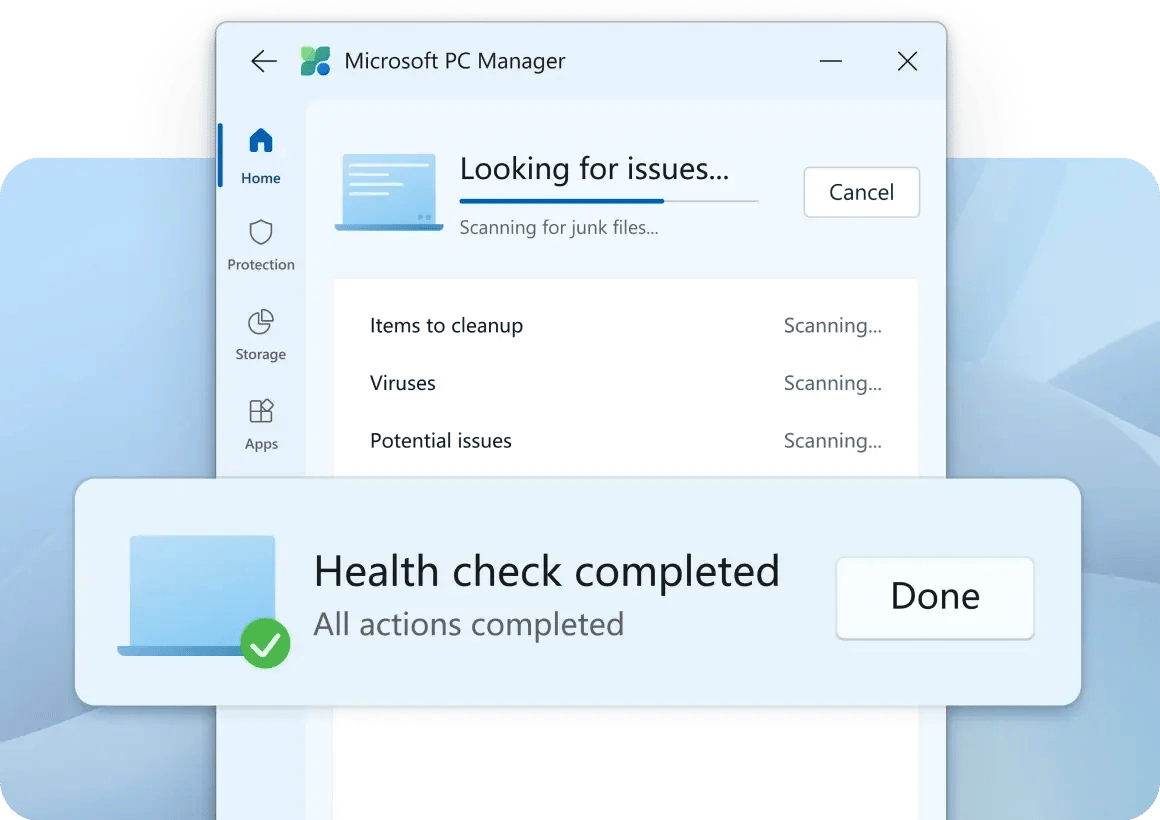
The health check feature provides a quick overview of system condition. It looks for common issues that may affect performance or security, such as unused files, protection status, or system clutter.
Rather than showing technical details, the health check focuses on clear results. Users can see whether the system is in good shape or needs attention and apply fixes with a single action.
This feature is especially useful for users who want reassurance without spending time reviewing multiple system indicators.
Security and Antivirus Integration
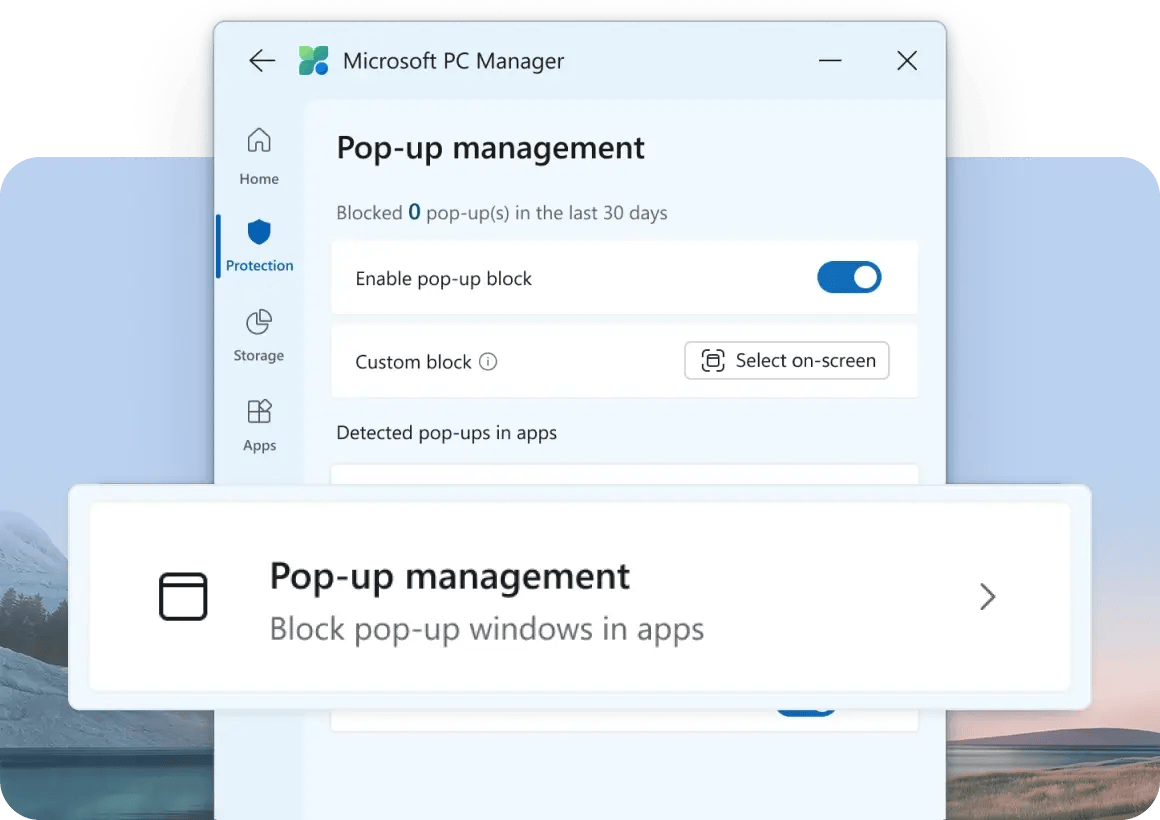
Microsoft PC Manager is closely integrated with Windows Security. It does not install its own antivirus engine or run separate background services.
From within the app, users can check antivirus status, run quick scans, and confirm that core security features are active. Because it relies on Windows Security, protection remains consistent with Microsoft’s own standards.
This approach avoids common issues found in third-party security tools, such as conflicts, performance impact, or duplicated services. It also keeps security management quiet and stable.
Windows Update and Protection Access
PC Manager provides quick access to update-related settings. Users can confirm that updates are enabled and that system protection features are active.
Regular updates are an important part of system security and stability. By making update status easier to check, the app supports better maintenance habits without forcing users into advanced settings.
What Users Realistically Gain
Microsoft PC Manager does not promise major performance transformations. Its value lies in everyday reliability.
Realistic outcomes include:
-
Faster access to cleanup and maintenance tools
-
Better awareness of system health and storage usage
-
Consistent security monitoring using built-in Windows protection
-
Fewer slowdowns caused by accumulated temporary files
-
Less time spent navigating Windows settings
The app works best when used regularly in small doses. Over time, these habits help keep the system stable and responsive.
Who Microsoft PC Manager Is Designed For
Microsoft PC Manager is intended for a broad range of Windows users, especially those who prefer simplicity.
It is a good fit for:
-
Home users who want basic PC care without complexity
-
Students using Windows laptops for study and daily tasks
-
Office and productivity users who value system stability
-
People who prefer official Microsoft tools over third-party software
-
Users who want visibility into system health without advanced tuning
Power users may already know how to access these tools manually, but even they may appreciate having everything in one place.
How Microsoft PC Manager Differs From Other PC Utilities
Many third-party PC utilities focus on aggressive optimization. Some promise large speed increases, registry cleaning, or deep system changes. These tools often install background services and apply settings that users do not fully understand.
Microsoft PC Manager takes a different approach. It does not attempt to change how Windows works internally. Instead, it organizes existing tools and makes them easier to use.
Key differences include:
-
Official integration with Windows features
-
No aggressive optimization techniques
-
Minimal system impact
-
No unnecessary background processes
-
Focus on safety and predictability
This makes the app a low-risk option for users who want maintenance without unwanted side effects.
Practical Use in Everyday Scenarios
In real-world use, Microsoft PC Manager is usually opened for short tasks rather than long sessions. It becomes part of a routine rather than a tool that constantly runs in the background.
Common scenarios include:
-
Cleaning temporary files before installing new software
-
Checking system health when the PC feels slower than usual
-
Confirming security status after long periods of use
-
Managing storage on devices with limited disk space
-
Performing quick maintenance before important work
These small actions, done regularly, help prevent larger issues later.
Limitations to Be Aware Of
Microsoft PC Manager is not designed for advanced system customization. Users looking for deep performance tuning, hardware control, or detailed diagnostics may find it limited.
It also relies entirely on Windows features. This is a strength for stability, but it means the app does not replace advanced third-party tools used by system administrators or technical professionals.
Understanding these limits helps set realistic expectations. PC Manager is a maintenance companion, not a full system management suite.
Final Summary
Microsoft PC Manager is a lightweight, official Windows utility designed to simplify everyday PC maintenance. By bringing cleanup, storage management, security checks, and system protection into one clear interface, it reduces the effort required to keep a Windows PC healthy.
The app does not promise dramatic performance gains or deep system changes. Its strength lies in consistency, safety, and ease of use. For users who want a calm, reliable way to maintain their PC using built-in Windows tools, Microsoft PC Manager offers a practical and well-structured solution that fits naturally into daily use.
Screenshots